Getting Started with ModuleForge and Azure DevOps
This tutorial will demonstrate how to create a simple, single-function module using ModuleForge, with 1 pester test, and deploy via Azure DevOps Pipelines.
Part 0 - Local Environment Setup
- Make sure you have completed the prerequisit
- Setup your local workspace. You will need to have installed
- PowerShell 7+
- VSCode (or your IDE of choice)
- If you use an IDE other than VSCode, you will need to correct the instructions in this tutorial accordingly
- GIT commandline
- Install PowerShell module dependencies. You will need the following modules from the PSGallery:
Pester5.6+PSScriptAnalyzer1.24+Microsoft.PowerShell.PSResourceGet1.1.1+ModuleForge1.2.0+
Note: All the required modules are cross-platform compatible. Your OS of choice does not matter.
Here is a code-snippet to help get you started
#Use the legacy PowerShell Get command to get PSResourceGet
Install-Module Microsoft.PowerShell.PSResourceGet

#Switch to PSResourceGet for the remainder
Install-PSResource -repository PSGallery -Name Pester,PSScriptAnalyzer,ModuleForge
Part 1 - New Repository
- Login to your Azure DevOps project
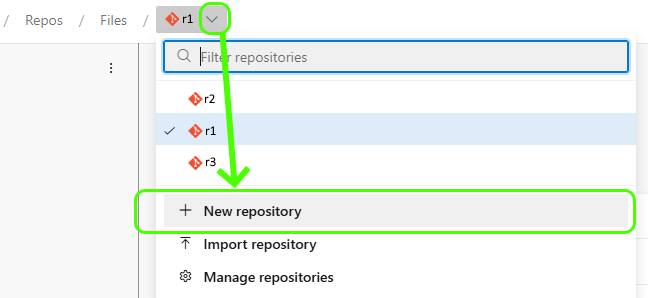
- Select Repos from the left menu, then use the small down arrow at the top to select
New Repo - Fill in the Create a Repository menu
- Your new repository should be called
PSHelloWorld - You can leave the option for a readme selected
- You can leave .gitignore set to none
- Your new repository should be called
- Clone your repository to your local environment
hint: If you are unsure of how to clone a repository, copy the URI from the browser address bar and use it with the
git clonecommand, e.g.git clone https://dev.azure.com/AzureDevOps-OrgName/AzureDevOps-ProjectName/_git/AzureDevOps-RepoName
Part 2 - Create a new ModuleForge Project
- From your repository directory, run the
New-MFProjectfunction to build the files out, as per the example below - Check you have created a
sourcedirectory and a module config filemoduleForgeConfig.xml. The source directory should have a number of subfolders - Run the
Add-MFAzureDevOpsScaffoldfunction to add 3 Azure Pipeline YML files, and a PR template to the.azuredevopsdirectory of your module folder - Check the files were created
- With your filestructure created and workflows added, commit and sync your repository back to origin\main
- You should use a proper commit message, something like `chore: Initialised ModuleForge project with scaffolding & workflows’
New-MFProject -ModuleName 'psGetHelloWorld' -description 'Another Hello World module'
Add-MFAzureDevOpsScaffold
Part 3 - Add our Azure Pipelines and Build Policies
Note: The Pipeline setup and build policies steps need to be repeated for any new repositories
Adding Azure Pipelines
- Open Azure Devops in your browser and select Pipelines
- Select
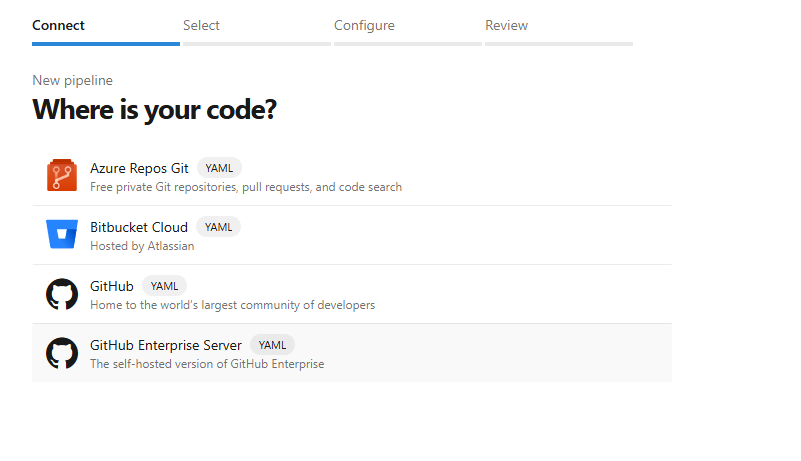
New Pipelinein the top right of the Pipelines window. - In the connect tab, select
Azure Repos Gitas the option for where is your code - Select the correct repository
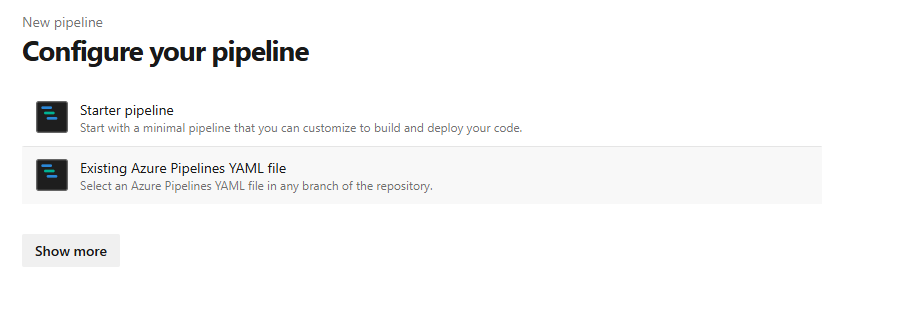
PSHelloWorld - In the Configure your Pipeline screen, select
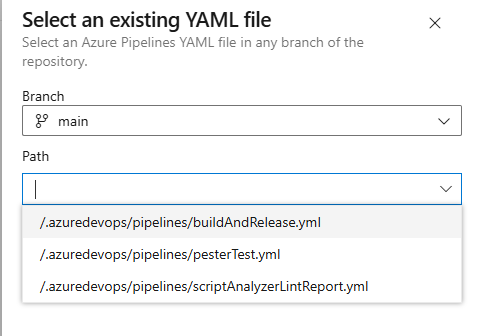
Existing Azure Pipeline YAML file - Select the
psScriptAnalyzerLintReport.ymlfile - In the Review your Pipeline screen, use the small arrow next to RUN and select
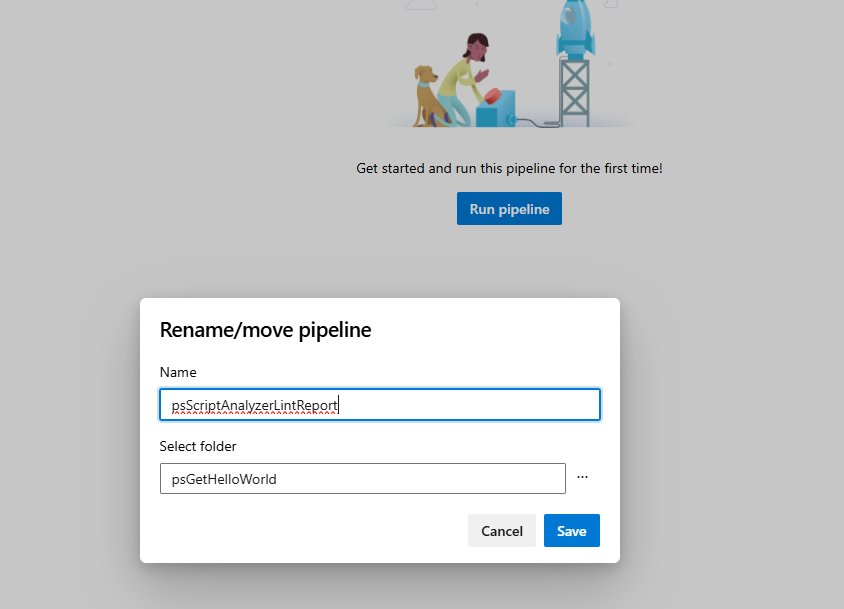
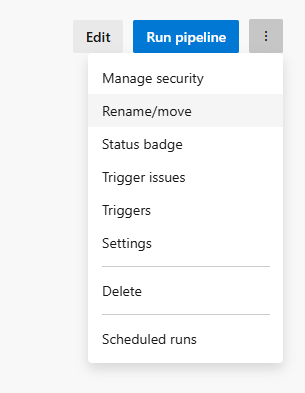
SAVE - In the next screen, select the small three dot menu in the top-right, and select
Rename/Move - Change the name and folder of the pipeline
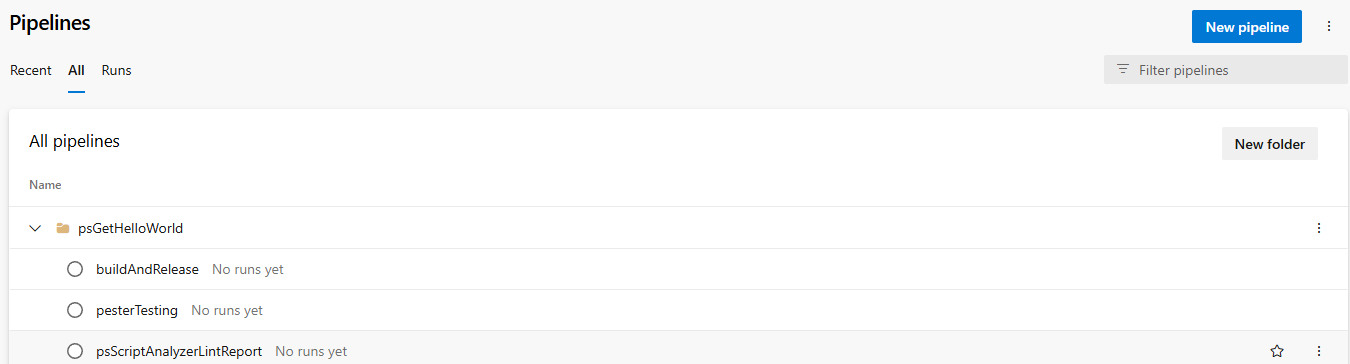
- The Name of the pipeline should be renamed to
psScriptAnalyzerLintReportto better identify it later - The
Select Foldershould be named after the repository -PSGetHelloWorld - This organisational step is critical to ensure that your Pipelines are well organised and identifiable later
- The Name of the pipeline should be renamed to
- Repeat steps 2 through to 9 for
buildAndReleaseandpesterTesting
Adding Branch Build Policies
- Go to your newly created Repo and select Branches option
- At the far right, when hovering over the main branch item, there will be a
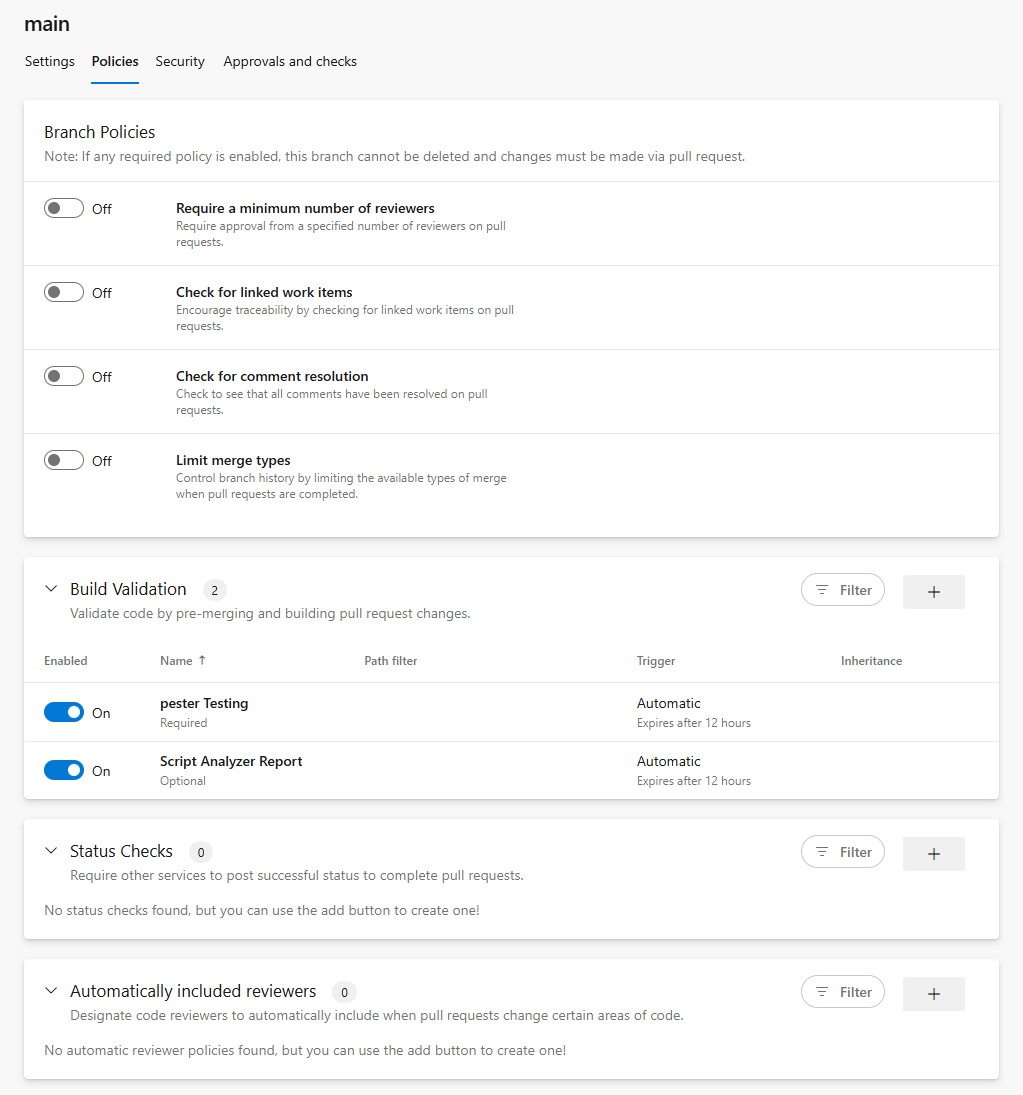
More Optionsmenu. Open it, and select💡Branch policies - Under Build Validation, add a new item
- Point to the
psScriptAnalyzerpipeline we made in the previous section - Trigger should be
Automatic - Policy should be
Optional - Expiry can be left at default
- Change the displayname to
Script Analyzer Reportfor easier visualisation
- Point to the
- Under Build Validation, add a second new item
- Point to the
Pester Testingpipeline we made in the previous section - Trigger should be
Automatic - Policy should be
Required - Expiry can be left at default
- Change the displayname to
Pesterfor easier visualisation
- Point to the
- You should now have 2 Build Validation steps, 1 Optional Script Analyzer step, and 1 Required Pester step
Part 4 - Create a Function and a Test
If we did all the previous steps correctly, we should not need to do any more settings configurations for this repository.
Creating our get-helloWorld function
- Return to VSCode (or other IDE)
- Create a branch called
feature/hello-world-function.- You can deviate from this naming convention if you like. The objective is to be consistant.
- Create a new file in the
functionssub-directory of thesourcedirectory- Call the file
Get-HelloWorld.ps1
- Call the file
- Code up your powershell function code.
- An example is provided below
- Make sure you include some form of Inline Help and follow good coding practices
Hint: In VSCode you can create a branch by clicking on the current branch name in the bottom left corner, then in the dialog box, selecting
+Create New Branch. VSCode will automatically switch you to the new branch
function Get-HelloWorld
{

    <#
        .SYNOPSIS
            Return Hello World

        .DESCRIPTION
            Return Hello World. Allows you to overwrite the default name of world with

        .EXAMPLE
            Get-HelloWorld

            #### OUTPUT
            Returns "Hello World!"

        .EXAMPLE
            Get-HelloWorld -name 'James'

            #### OUTPUT
            Returns "Hello James!"
    #>

    [CmdletBinding()]
    PARAM(
        #Name param, specify to override the default of World
        [Parameter()]
        [string]$Name = 'World'
    )
    begin{
        #Return the script name when running verbose, makes it tidier
        write-verbose "===========Executing $($MyInvocation.InvocationName)==========="
        #Return the sent variables when running debug
        Write-Debug "BoundParams: $($MyInvocation.BoundParameters|Out-String)"

    }

    process{
        "Hello $Name!"
    }

}
Creating our Pester Test
- Create a new file in the
functionssub-directory of thesourcedirectory- Call the file
Get-HelloWorld.Tests.ps1 - It is important that
Testsis in the correct, capital-case format forinvoke-pesterto work.
- Call the file
- Code up your Pester Test. You can use the example below
- Don’t forget to load your functions file in a before all block
- This can be achieved dynamically with this little piece of code:
. $PSCommandPath.Replace('.Tests.ps1','.ps1')
BeforeAll{
    #Load The Function File
    . $PSCommandPath.Replace('.Tests.ps1','.ps1')
}

Describe "Get-HelloWorld Default Parameters" {
    BeforeAll {
        $hello = Get-HelloWorld
    }

    It 'Should not be null or empty' {
        $hello |Should -Not -BeNullOrEmpty
    }

    It 'Should contain "Hello World!"' {
        $hello |Should  -Be 'Hello World!'
    }
}

Describe "Get-HelloWorld Custom Name" {
    BeforeAll {
        $hello = Get-HelloWorld -name 'James'
    }

    It 'Should not be null or empty' {
        $hello |Should -Not -BeNullOrEmpty
    }

    It 'Should contain "Hello James!"' {
        $hello |Should  -Be 'Hello James!'
    }
}
Run our Pester Test Locally
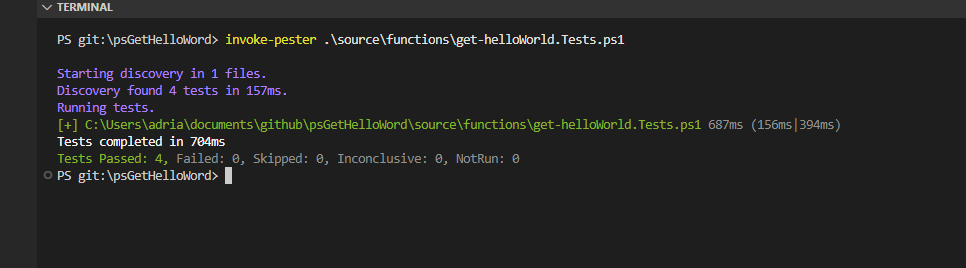
- It is a good idea to test locally before we submit our code back to the repository
- We can do that from our invoking pester from our working directory, as per below
- If everything is working as intended, you should have passed the 4 tests (represented in our Pester test as ‘It’ blocks)
Invoke-Pester '.\source\functions\Get-HelloWorld.Tests.ps1'
Part 5 - Pull Request and BuildAndRelease
Commit changes
- Commit just our functions file with the
featcommit prefix and a relevant comment- Something like
feat: added get-helloWorld function
- Something like
- Now commit the pester test file using the
testcommit prefix- Something like
test: added Pester testing for get-helloWorld
- Something like
- Publish your branch back to Azure DevOps
Hint: If you are not sure how to commit in VSCode, switch to the
Source Controlitem in the left-most menu. You will need to stage each file by clicking the small plus sign next the the filename. Enter the commit message into the text box labelled changes, when ready, hit commit. Once all your files are committed, you can publish your branch with thePublish Branchbutton that replaces theCommitbutton
Note: Don’t forget to checkout the Main branch on your local working directory before adding any more code.
Create a Pull request
- In your browser, navigate to your Azure DevOps project workspace and then repository and select the files Item. You should see a notification banner at the top advising that a new branch can be used to create a PR.
- Click the option to create a Pull Request
- Fill in the Pull Request template
- Type in a decent description
- Check the appropriate options with an
Xto help determine your next version, and to make it easier to review later. 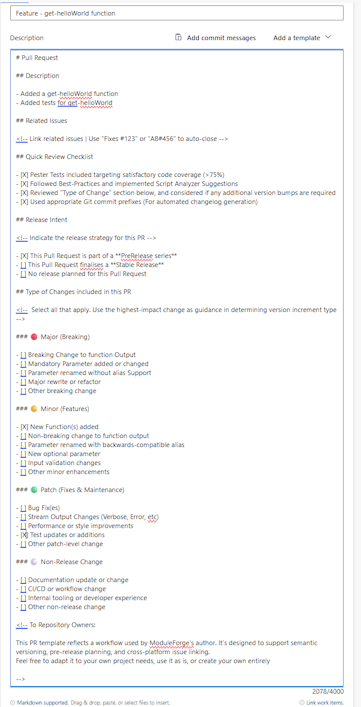
- Once you have completed the PR template, create the Pull Request
- On submission of a Pull Request to the Main branch, the Pester and ScriptAnalyzer workflows will automatically be invoked. The results will be added as comments to the PR
- If everything is tracking well, our tests passed, there are no merge conflicts, and we should be ok to proceed to
Merge Pull Request

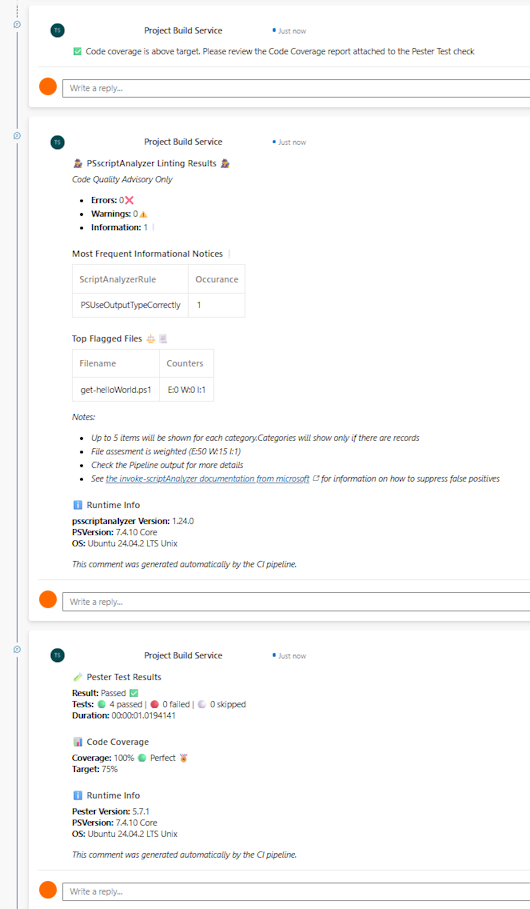
If you want to explore your pester results in more details before a merge, you can click on
checksand review the pipeline results in details. You can also check out the Code-Coverage results that get added as part of the Pester Test step.
Build and Release
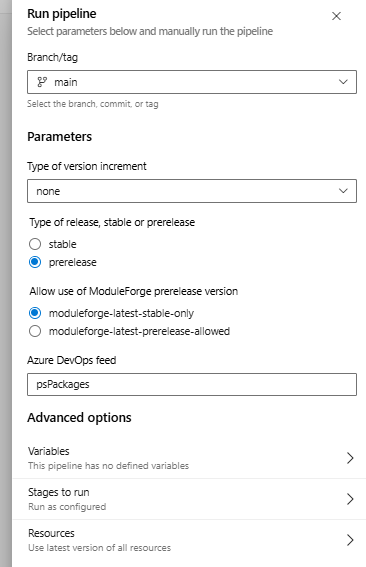
- With our Pull Request merged, navigate to
Pipelinesmenu - Find and select the
Build and Releasepipeline associated to your repository - Select the
Run Pipelineoption, a menu will appear. Fill out the fields appropriately and then chooserun workflow- Branch should be main
- Since this is our first release, lets leave the type to increment as
none - Type of release should be
prerelease - The
ModuleForgeversion should be stable - The feedname should match what you set in the PreRequisits
- If you changed the feedname, recommend you also update this form to reflect that change by editing the buildAndRelease.yml file
- Wait for our pipeline to finish.
- Browse to Artifacts and your Package Feed, where you can
If you want to
manuallydownload and install your new module, you can download the nupkg from the package feed, rename the extension to.zipand uncompress to find your module.
Part 6 - Install locally with PSresourceGet
In your PowerShell terminal with PSResourceGet ready to go, you can register a new repository. You will only need to register the repository once.
- Create a Azure DevOps Personal Access Token.
- You can find the Personal Access Tokens setting in the small
User Settingsmenu next to your Profile headshot in the top right of Azure DevOps - The Personal Access Token only requires
Packages: Readaccess - The Personal Access Token value will form the password part of our credential object and allow us to use our Azure Devops feed.
- You can find the Personal Access Tokens setting in the small
- In a PowerShell Terminal, register your Azure Devops feed as a repository
- There are two ways to register
- With a Credential Object,
- With a special CredentialInfo class (If you are using
Microsoft.PowerShell.SecretManagementmodule). This is the recommended approach
- There are two ways to register
You can read more about the next steps here
Using Azure DevOps Package Feed with Credentials
To register with a credential, see the example code below
### Create a credential object
### Your username will be your Azure DevOps account email
### The password will be the PAT you created
$azdCredential = Get-Credential

#use the register-psResourceRepository commandlet to register
#This is easier to do with splatting
#Don't forget to swap out the azdCredential with your actual Azure account
$splat = @{
    Name = 'myAzureDevopsFeed'
    Uri = 'https://pkgs.dev.azure.com/<ORGANIZATION_NAME>/<PROJECT_NAME>/_packaging/<FEED_NAME>/nuget/v3/index.json'
    Trusted = $true
}
#Splat it in
Register-PSResourceRepository @splat

#Once registered, you can use it in a similar fashion to PSGallery
#Don't forget to specify the -PreRelease flag
Find-PSResource -Name psGetHelloWorld -Prerelease -Repository myAzureDevopsFeed -Credential $azdCredential
Using Azure DevOps Feed with a Secret Vault (Recommended)
To register with Microsoft.PowerShell.SecretManagement, first, create a new secret in your secret vault. The username should be your Azure DevOps account email, and the password the PAT you created
### Create a pointer to your secret and vault
### Your username will be your AZD email
### The password will be the AZD PAT you created
#You will need to make sure that PSResourceGet module is imported first
$credentialInfo = [Microsoft.PowerShell.PSResourceGet.UtilClasses.PSCredentialInfo]::new('VaultName', 'SecretName')

#use the register-psResourceRepository commandlet to register
#This is easier to do with splatting
#Don't forget to swap out the azdCredential with your actual azure account
#
$splat = @{
    Name = 'myAzureDevopsFeed'
    Uri = 'https://pkgs.dev.azure.com/<ORGANIZATION_NAME>/<PROJECT_NAME>/_packaging/<FEED_NAME>/nuget/v3/index.json'
    Trusted = $true
    CredentialInfo = $credentialInfo
}
#Splat it in
Register-PSResourceRepository @splat

#Once registered, you can use it in a similar fashion to PSGallery
#Don't forget to specify the -PreRelease flag
#Because we supplied a CredentialInfo pointer, Find-PSResource will automatically open our vault to retrieve the secret when required
Find-PSResource -Name psGetHelloWorld -Prerelease -Repository myAzureDevopsFeed
A note on V3 nuget feeds and PSResourceGet. Wildcard searching is not supported at this time, you will need to know the exact name of your module for find and install commands to work.
Wrapping up
In this tutorial, we created a new repository, added our ModuleForge scaffolding, created a new PowerShell function + test, performed a review and unit test, and released it as a PreRelease into our private Azure DevOps Packages feed for consumption. We effectively made a CI/CD PowerShell Pipeline using Azure DevOps Pipelines + ModuleForge, and published a single-function module.